

Checked against the app: 20 November 2026Read as Markdown
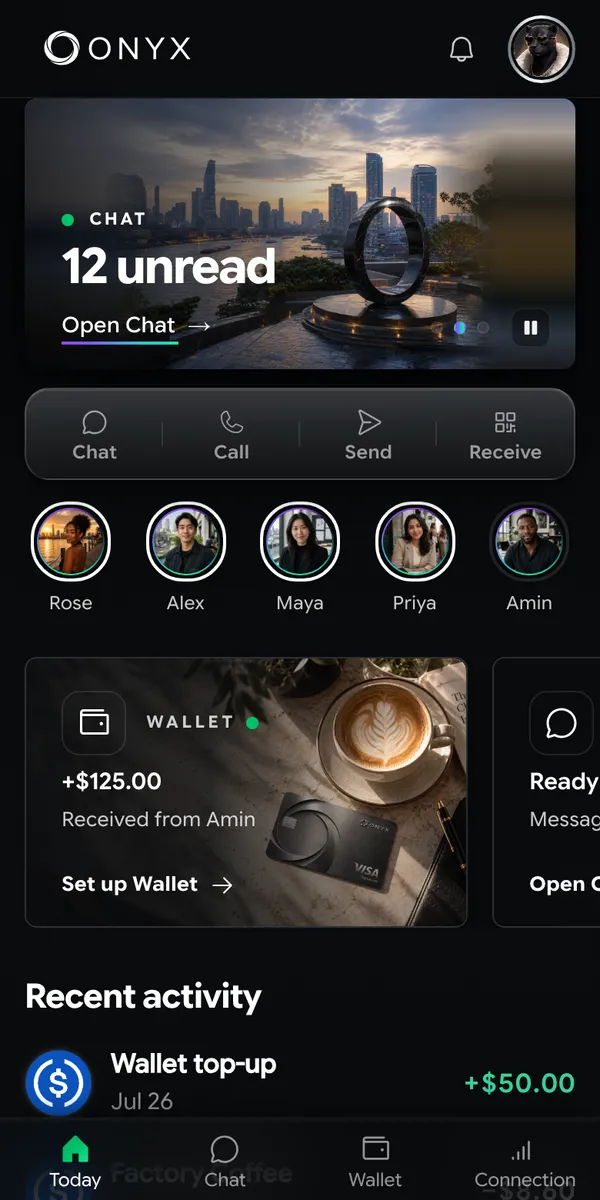
Today
- The top card leads with what needs you: an unread chat, a missed call, a message from Onyx, or your connection ("Connected in Lisbon"). It rotates; tap pause to hold it.
- Quick actions: Chat, Call, Send, Receive.
- Your cards: Connection, Chat and Wallet, plus a few you haven't tried yet. Those retire after a week.
- Recent activity: Wallet, Chat, Calls and Voicemail tabs.
Finish setting up
Today shows these once a day until all three are done:
- Choose a plan: eSIM data, a number, or both.
- Make it yours: your first name. The one you gave in the welcome counts.
- Add a passkey: sign in with Face ID next time.
Later hides it for the day.
Your wallet isn't on the list. It's made the first time you tap Add funds or Receive. Set up your wallet.
On a computer
Same four tabs, in a sidebar, plus quick search. Press ? for shortcuts:
| Keys | Goes to |
|---|---|
| g then t | Today |
| g then c | Chat |
| g then w | Wallet |
| g then n | Connection |
| g then d | Dialer |
| g then p | Profile |
| g then s | Settings |
Replay the welcome
New accounts get a short tour. Watch it again from Settings › Help & legal › Replay the welcome.