

Checked against the app: 20 November 2026Read as Markdown
Install on Wi-Fi before you travel. You're online the moment you land.
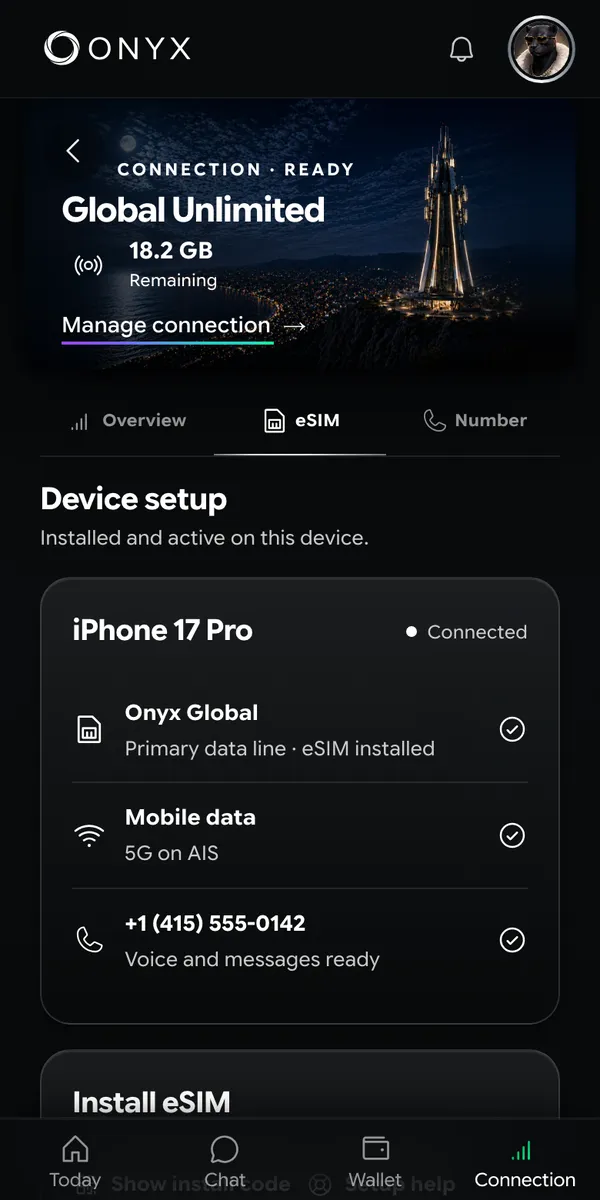
- On your iPhone, open your order email and tap its iPhone install button.
- Or open Connection › eSIM in the web app, tap Install eSIM, then Manual installation code and Copy code.
- In Settings › Cellular › Add eSIM › Enter Details Manually, enter the SM-DP+ address and Activation code.
- Finish in the Add eSIM screen and label the line Onyx.
Installing on an iPhone from a computer? Show the QR code on the computer and scan it with the iPhone's camera.
- Open Connection and tap Install eSIM.
- Android opens its eSIM installer. Follow the steps and confirm.
- If the installer doesn't open, Onyx copies the code for you: tap Add eSIM in your phone's SIM settings and paste it.
- Come back to Onyx and confirm it's installed.
- Open Connection › eSIM and tap Install eSIM.
- Tap Show install code and scan the QR code with the phone you're installing on.
- Or use Manual installation code and Copy code, then enter it in the phone's eSIM settings.
The email
Your order email has the same QR code and manual details, plus an iPhone install button.
Install problems
| You see | Do this |
|---|---|
| "Cellular plan cannot be added" or similar | Check your phone is eSIM compatible and not carrier-locked, then retry on Wi-Fi. |
| The QR code won't scan | Use the manual code instead. |
| The code says it's already used | The eSIM is installed already. Look for it in your phone's SIM list. |
| Nothing happens on tap | Update your phone's software, or use the QR code. |